If you forgot your access code, are handing the apartment to a new tenant, or your Kwikset keypad has started misbehaving, a reset wipes the lock clean and lets you start fresh. We program and reset these locks for New York clients constantly, so this guide gives you the exact process for every Kwikset smart lock, the difference between the two reset types people always mix up, and the step most guides skip entirely: what to do once the reset is done.
A reset is one of those jobs that is genuinely simple once you understand what is happening inside the lock and which button to hold. The trouble is that the steps vary slightly by model, and a lock that is not fully unlocked, or has weak batteries, will refuse to cooperate and leave you thinking it is broken. Work through the sections below in order and you will not hit those snags.
What a reset actually does, and why you might need one
Your Kwikset smart lock stores everything in a small internal memory: the user codes people punch in, the programming code that authorizes changes, the door handing, which direction the bolt throws, and the pairing details if it talks to a smart home hub. None of that lives on the key or in the cloud by default. It lives on the lock itself. A reset erases that memory and returns the lock to the state it was in out of the box.
That is why a reset is the right tool in these situations specifically:
- You forgot the code and have no way to get back into programming mode, so you need to wipe and start over.
- You are moving in or out and want every code the previous occupant knew to stop working immediately.
- The lock is glitching, double-beeping, ignoring codes, or behaving erratically after a battery change or firmware hiccup.
- You are reselling or returning the lock and need it unpaired from your accounts and stripped of your codes.
If you only want to remove one person’s code and keep everyone else’s, you do not need a reset at all. Skip to the section on deleting a single code further down.
Open the door, pull the battery pack, then press and hold the Program button while reinserting the batteries. Hold for 30 seconds until you hear a beep and the LED flashes red. Press Program once more, wait for a green flash and two beeps, and the lock is reset. No key needed. Everything below explains why each part of that matters, covers the model differences, and walks through the after-reset steps so the lock actually works when you are done.
Factory reset vs system reset: know which you need
Kwikset locks have two reset paths and people constantly confuse them. Picking the wrong one wastes time, so here is the practical difference.
- Factory reset returns the lock to default settings, deletes every user code, and removes it from any smart home system. This is the complete wipe you want when you are moving, reselling, or troubleshooting a glitch. After it finishes, the lock behaves exactly as it did the day it was unboxed.
- System reset clears the access codes and lock settings and then restarts the door handing process, but it is intended for the narrower case where your primary smart home controller is missing or no longer working and you need the lock to forget it.
For the vast majority of people the factory reset described below is the correct choice. When in doubt, use the factory reset, because it is the more thorough of the two and resolves more problems.
What the LED colors and beeps mean
The lock communicates with you during the reset through its status LED and a small speaker. Knowing what each signal means turns a confusing process into an obvious one.
| Signal | What it means |
|---|---|
| Solid or flashing red | The lock is in reset or programming mode, or a step failed. During a reset, a red flash after the 30-second hold is the signal you are waiting for. |
| Flashing green and two beeps | Success. The action completed and the lock accepted it. This confirms the reset finished. |
| Three beeps | Rejected. Usually the lock is not in the unlocked position, or a code or sequence was wrong. Start over from a fully unlocked state. |
| Rapid beeping or no response | Low batteries or a lockout. Replace the batteries or wait out the lockout, then retry. |
How to factory reset a Kwikset SmartCode 909, 910, 913, 914, 916, or 270
This covers the most common keypad and touchscreen deadbolts. Keep the door open the entire time, and follow why each step matters, not just the motion.
- Open and unlock the door. Leave it open so the lock can relearn its orientation at the end. A reset clears the door handing, and the lock can only re-learn which way it locks while the door is open and free to move. Reset it on a closed door and the bolt can end up throwing the wrong way.
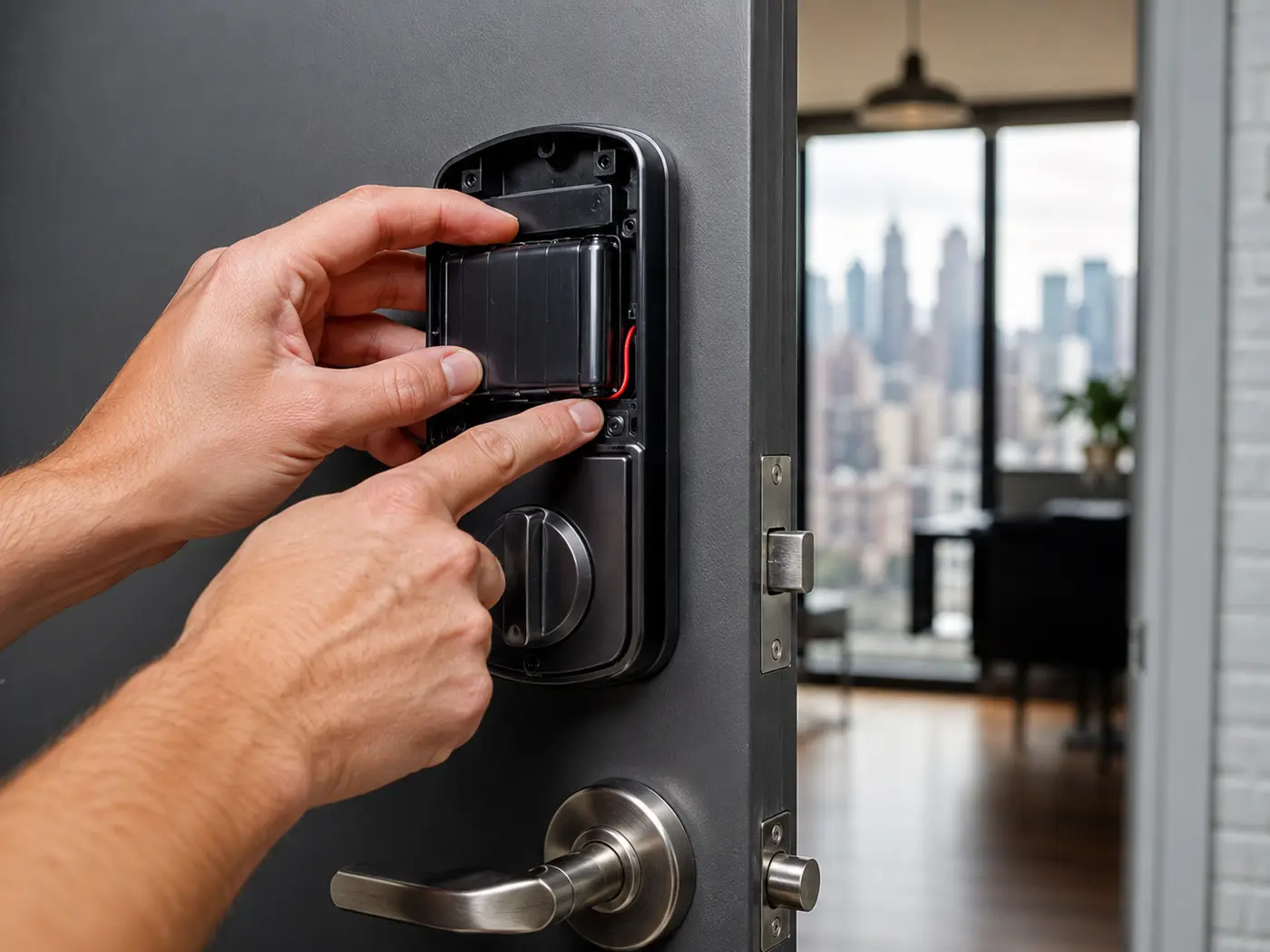
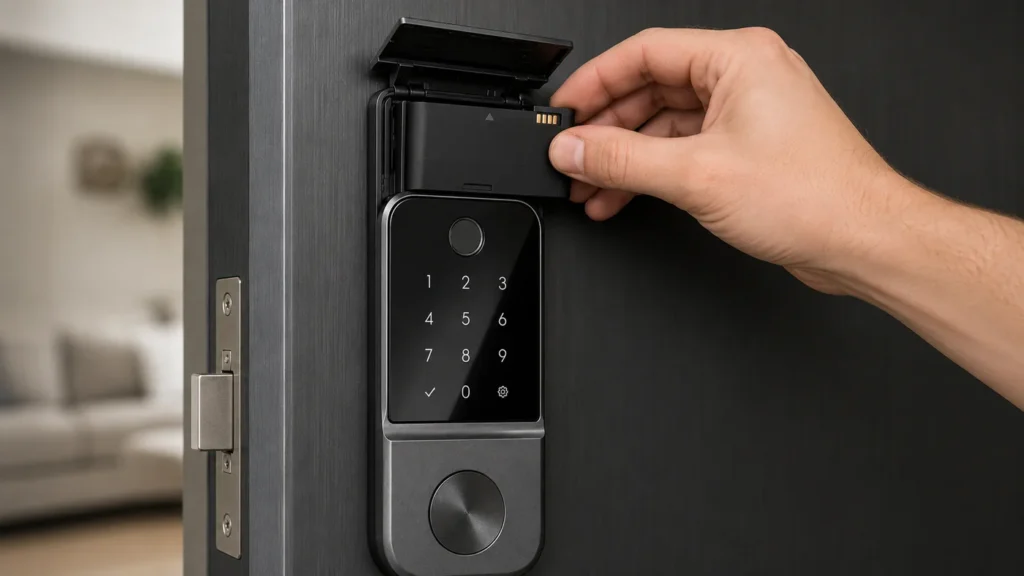
- Remove the battery pack. Take the cover off the interior side of the lock and pull the batteries out. Cutting power is what lets the lock enter reset mode on the next power-up, rather than just running normally.
- Hold Program while reinserting the batteries. Find the Program button on the interior back panel. Press and hold it as you reinsert the battery pack, and keep holding for a full 30 seconds until you hear a beep and the status LED flashes red. The long hold is deliberate: it is the lock’s safeguard so a reset cannot happen by accident. Let go too early and nothing happens.
- Press Program one more time. Release the button, then press the Program button again. The LED flashes green and you will hear two beeps. That green-and-two-beeps confirmation is the lock telling you the memory is wiped and it is back to factory defaults.
- Confirm it worked. Try an old user code. It should be rejected. Testing a code you know used to work is the fastest way to verify the reset actually took, rather than assuming.
How to delete a single code without a full reset
People often reach for a full reset when all they really want is to revoke one person’s access, for example a former roommate, a contractor, or an ex-tenant, while keeping their own codes and smart home setup intact. A reset is overkill there, because it forces you to reprogram everything.
On most SmartCode models you can delete a single user code from the keypad using your programming code and the position number of the code you want gone, following the steps on the last pages of your installation guide. The exact key sequence varies by model, so check the guide for yours. The takeaway: reach for a full reset only when you have lost control of the lock or want a clean slate. For routine access changes, delete or change individual codes instead.
Reset steps for other Kwikset models
Not every Kwikset lock resets the same way. Match your model below before you start, because holding the wrong button does nothing on some of these.
| Model | Reset method |
|---|---|
| Halo, Halo Touch, and Aura | These are Wi-Fi or app-first locks. Use the Kwikset app to remove the lock, or follow the installation guide to clear codes, then re-add codes afterward. Resetting from the app also cleans up the cloud side so the lock is not left half-registered. |
| Premis | Press and hold button A on the back panel for 20 seconds. This restores defaults without triggering the handing process, which is useful when handing is already correct and you only want a clean wipe. |
| Kevo | Press and hold the reset button for 10 seconds until the LEDs flash red. You must re-enroll your phone, fobs, and eKeys afterward, since the reset removes every paired credential. |
| Z-Wave models | Remove the cover and battery pack, hold Program, reapply power, then press once more. Re-enroll the lock to your network afterward, and remove the old device entry from your hub first so it does not conflict. |
When in doubt, match your exact model on the official Kwikset factory reset support page, which lists the steps for each lock family and includes interactive guides for the trickier models.
Do not skip this: what to do after the reset
A reset is only half the job. The lock is now blank, which means it has no codes and does not know your door. Once it beeps green, finish these three steps or it will not behave correctly.
- Re-do the door handing. With the door open, run the handing process from your guide so the lock learns which way it locks. Skip this and the bolt can throw the wrong way or jam against the frame.
- Add new user codes from the installation guide. Choose codes you have not used before. Avoid obvious sequences like 1234 or your apartment number, and give each household member their own code so you can revoke one without disturbing the others.
- Re-pair your smart home. If the lock was on Alexa, Google Home, SmartThings, or a Kwikset app, the reset removed it. Delete the old device entry from that app first, then add the lock back fresh. Adding it without removing the stale entry is the usual reason a re-pair fails.
Battery guidance most guides leave out
A surprising share of Kwikset problems that look like a need for a reset are really just power problems. Before you reset anything, rule out the batteries.
- Use fresh alkaline AAs, all from the same pack. Mixing an old battery with new ones drags the whole set down and causes erratic behavior.
- Avoid most rechargeable cells unless your model specifically supports them, because their lower voltage can make the lock think it is low when it is not.
- Treat repeated low-battery warnings as a signal, not a nuisance. A lock that drains batteries fast may have a binding bolt or misaligned strike, which is a mechanical issue a reset will not fix.
Reset not working? Quick troubleshooting
If the lock will not reset, it is almost always one of these causes. Work down the list.
- No red LED after 30 seconds: your batteries are likely weak, or you released the button early. Install a fresh set, hold the full 30 seconds, and retry from the start.
- Lock beeps three times: it is not in the unlocked position. Fully unlock it by hand, then begin again. The lock refuses to reset while thrown.
- Codes still work after reset: the reset did not complete, almost always because the Program button was let go too soon. The full hold matters.
- Keypad locked you out: three failed code attempts trigger a roughly 60-second lockout as an anti-tamper measure. Wait it out, then reset.
- Lock resets but will not re-pair to your hub: remove the old device entry from the app, then add it again. A stale entry blocks the new connection.
NYC tip: moving in or out
Moving into a new apartment with an existing Kwikset lock? Reset it so the previous tenant’s codes are gone, the same way you would change or rekey your locks after moving in. If the lock is shared with a landlord-held key or is part of a building system, confirm your lease terms before you change anything, since some buildings require access to a working code or key.
When to call a locksmith
You can reset the lock yourself in most cases. Call a pro when the keypad is unresponsive even after fresh batteries, the bolt jams or binds, or you are fully locked out and cannot reach the interior button to start the reset. That last one is an emergency lockout situation. If you are weighing a replacement instead, our roundup of the best smart locks for NYC apartments and our honest take on whether keyless entry locks are safe will help you decide what to put on the door next.
Frequently asked questions
How do I reset my Kwikset smart lock without a key?
You do not need a key. Open the door, remove the batteries, hold the Program button while reinserting them, keep holding 30 seconds for the red LED, then press Program again for the green flash and two beeps. The reset lives entirely in the interior electronics, so a key is never part of it.
Does resetting delete all my codes?
Yes. A factory reset removes every user code and the programming code, restores defaults, and unpairs the lock from any smart home system. If you only want to remove one code, delete that single code instead of doing a full reset.
Why will my Kwikset lock not reset?
The most common causes are weak batteries, releasing the Program button before the full 30 seconds, or the lock not being in the unlocked position. Fix those three and it resets reliably.
Will a reset fix a lock that keeps draining batteries?
Usually not. Fast battery drain often points to a mechanical problem like a binding bolt or a misaligned strike plate. A reset clears the electronics, not the hardware, so address the alignment first.
Get help from Rainbow Locksmith NY
Locked out or lock will not cooperate? Rainbow Locksmith NY programs, resets, and repairs smart locks across Manhattan, same day.